
Different goods in different stores
Main → Goods → swipe a group left → pencil (Edit group)
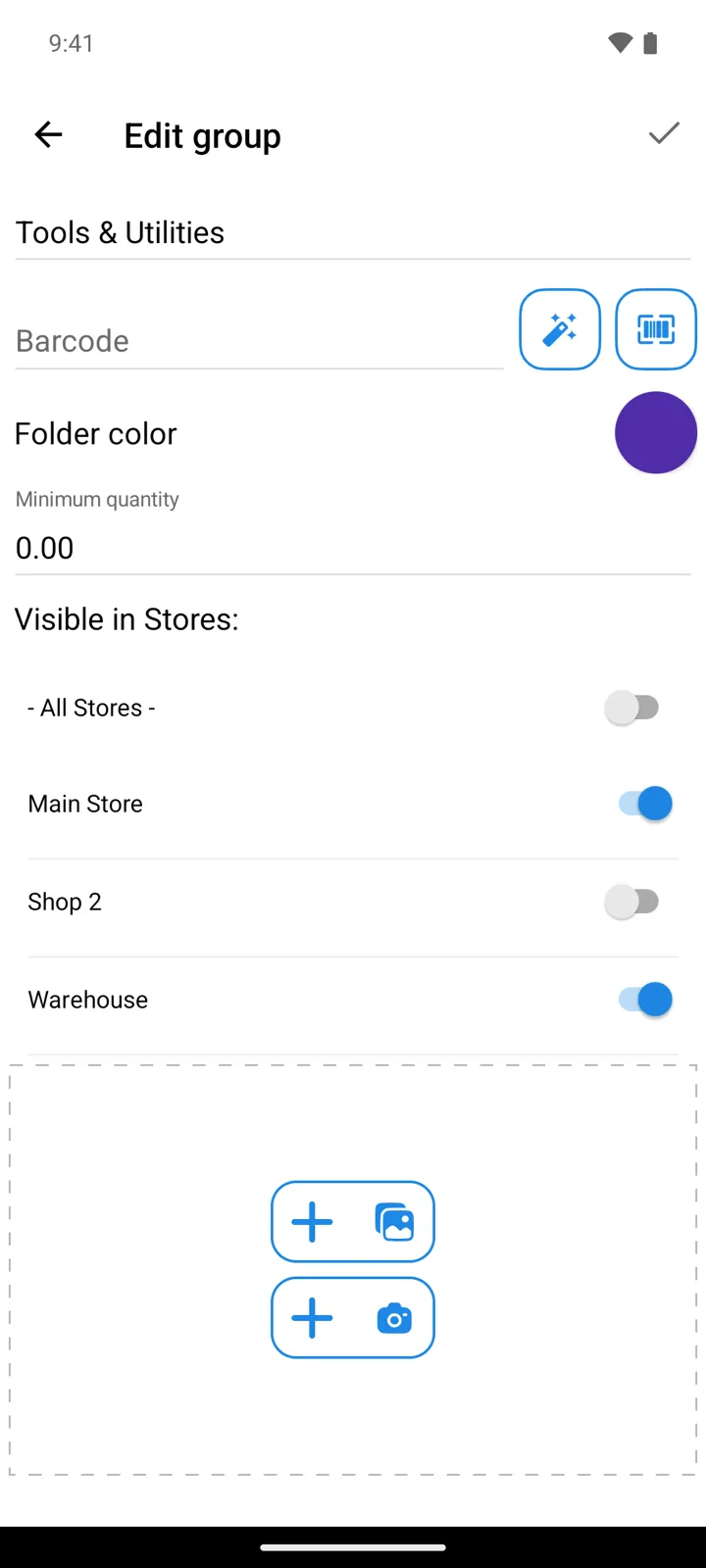
Do your stores carry different goods? Say Shop 2 sells only drinks, while Main Store and Warehouse also stock tools. Make the Tools & Utilities group visible only in the stores that need it: in Shop 2 the group and everything in it drop out of the Goods list, so whoever works there picks from that shop’s own range.
-
Open Goods at the top level of the catalog — stores are chosen for top-level groups only. Swipe the group’s row to the left and tap the pencil: Edit group opens. (Long-pressing the row → Edit group works too, and is the way in the card view. New group? Tap the folder button, left of +, while you’re at the top level.)
-
Under Visible in Stores:, switch off - All Stores -. A switch for each of your stores appears.
-
Switch on the stores that should see the group — here Main Store and Warehouse — and leave Shop 2 off.
-
Save.
Switch to Shop 2 with Select store, and Tools & Utilities is gone from its Goods list.
What changes in a store that doesn’t see the group
Section titled “What changes in a store that doesn’t see the group”| Where | In that store |
|---|---|
| Goods list and its search | The group, its subgroups and their items are hidden |
| Adding items to an operation | Hidden from the goods list you pick from. The operation’s store decides — for a Transfer, the store the goods leave |
| Stock-taking → View missing items | Not listed |
| Move to group | The group isn’t offered — the button at the top of the picker shows hidden groups too |
| Scanning a barcode in an operation | Still finds the item — scanning doesn’t look at groups |
| Quantities and reports | Unchanged — hiding only filters lists; the stock stays where it is |
| All Stores mode | Everything is shown |
Good to know
Section titled “Good to know”- Subgroups follow their top-level group. Only a group at the top of the catalog has Visible in Stores:; its subgroups and items are shown or hidden with it. Items that aren’t in any group show in every store.
- One store at least. With - All Stores - off, one store must stay on — otherwise the app says “You should select at least 1 store for which the group will be visible!”
- The store switches save at once, the moment you flip them — leaving the editor without saving doesn’t undo them.
- A new store sees only the shared groups. A store you add later shows the groups set to - All Stores -; for each limited group, open it and switch the new store on.
- Moving a group changes what decides. Moved inside another group, it follows that group’s stores; moved to the top level, it becomes visible in all stores — set its stores again if needed.
- The setting is in both StoDo Simple and StoDo Online, free. Running more than two stores needs Premium — see Free vs Premium; stores are managed on the Stores screen.
- Online: the setting is shared — every user sees the same groups in a store. To choose which stores a user works in, tick their Access to Stores (see Invite users); changing a group’s stores needs Access to Goods → Edit in their profile.
Still need help? Contact us